
Use MetaMask
Install MetaMask on mobile or as a browser extension and receive the certificate on Base.
- Audience
- Card owners
- Updated
- 2026-07-30
Who this wallet is for
Users who already use an Ethereum wallet or want broad browser and mobile support.
Official download
Use only the official link below. Check the website domain before installing an app or browser extension.
Set up the wallet
- Open the official MetaMask download page and choose the mobile app or the extension for your browser.
- Create a wallet or import a wallet you already control. Store the Secret Recovery Phrase offline and never enter it on EditionKey.
- Select Base. If Base is not visible, add or enable it using MetaMask's official network controls.
Receive your EditionKey certificate
EditionKey transfers the NFT Certificate on Base to the public address you confirm. The platform pays for the initial transfer.
- In the selected MetaMask account, copy the public 0x address.
- Paste that address into both EditionKey wallet fields and compare the beginning and ending characters before confirmation.
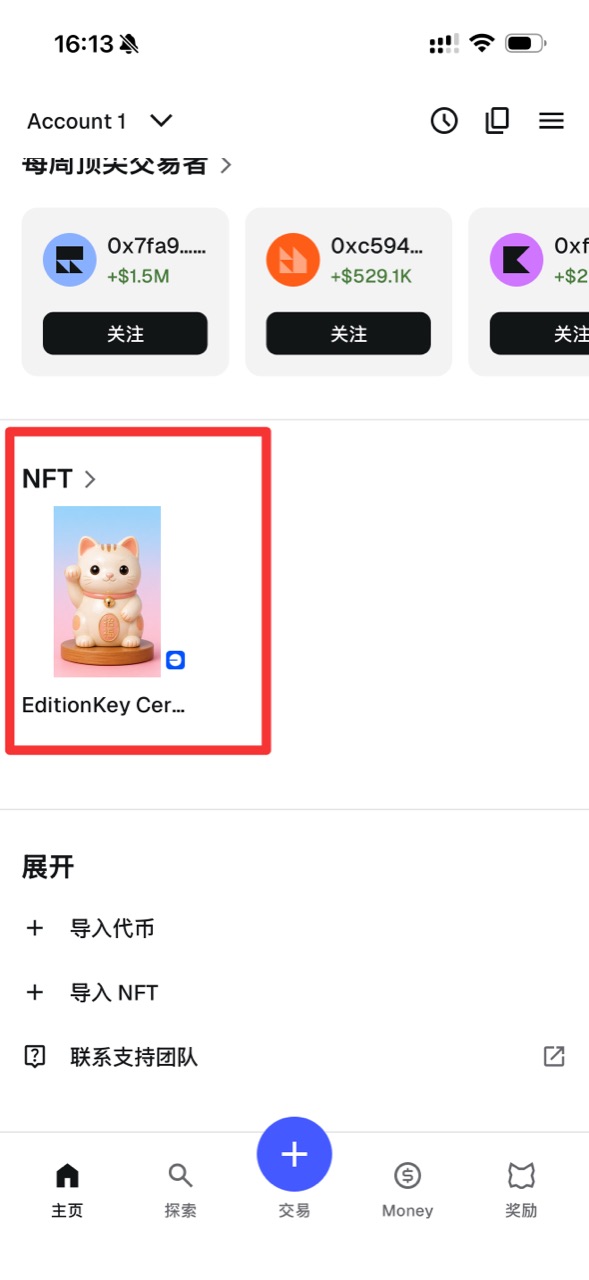
- After claim, open the NFTs tab on Base. NFT autodetection may need to be enabled; the chain record remains valid even if the image takes time to appear.
Receive and import the certificate
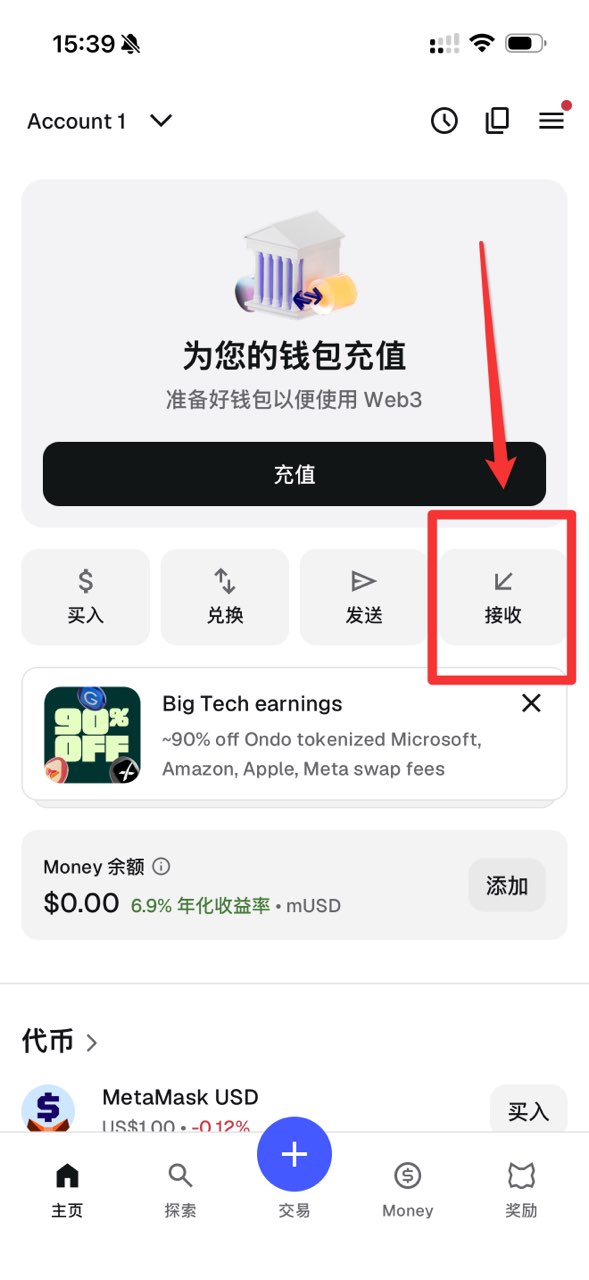
The screenshots below use the current Chinese-language MetaMask Mobile interface. Button positions are the same in other languages.
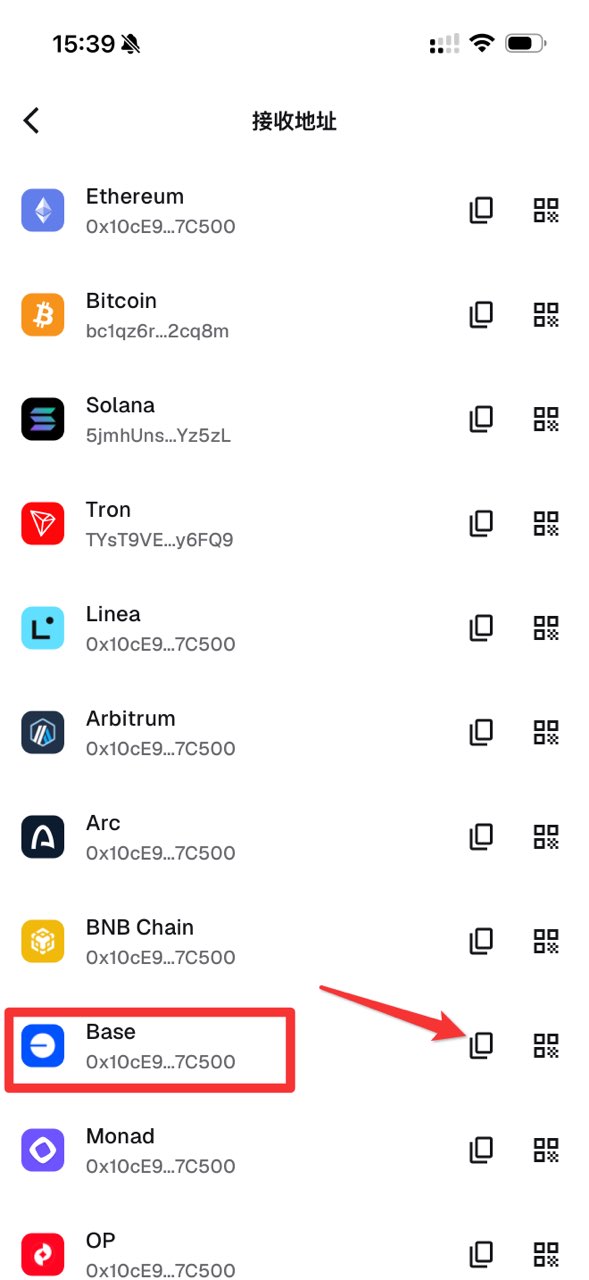
Ethereum, Base and other EVM networks may show the same 0x account address, but assets remain on separate networks. EditionKey transfers the NFT Certificate on Base, so use the Base row and view the certificate on Base after claiming.
MetaMask may detect the certificate automatically. If it does not, manual import only adds the existing on-chain certificate to the wallet display; it does not Mint, transfer or create another NFT.
- On the MetaMask account Home screen, confirm that you selected the account you control, then tap Receive.
- On the Receive Address screen, find Base and tap its copy icon. Do not copy a Bitcoin, Solana, TRON or exchange deposit address.
- MetaMask shortens the address on screen for display. Paste the copied complete 42-character 0x address into both EditionKey fields and compare the first and last characters before confirming.
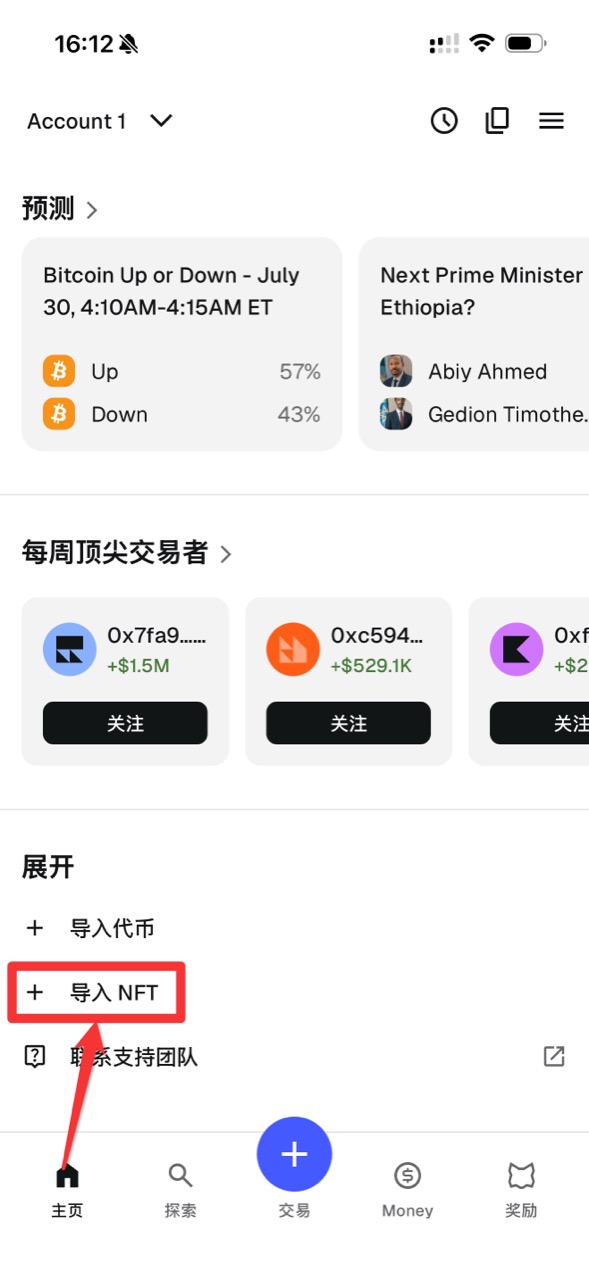
- After My Cards shows the certificate under Claimed, return to MetaMask Home, scroll to Expand and tap Import NFT. Do not choose Import Token.
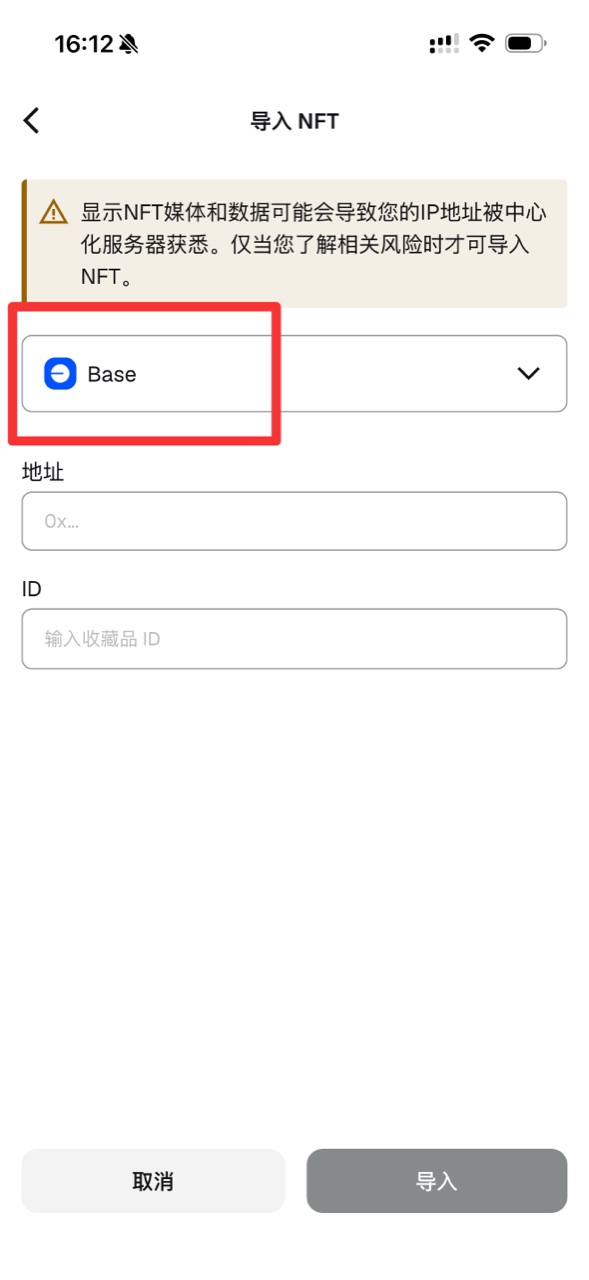
- On Import NFT, select Base before entering any values.
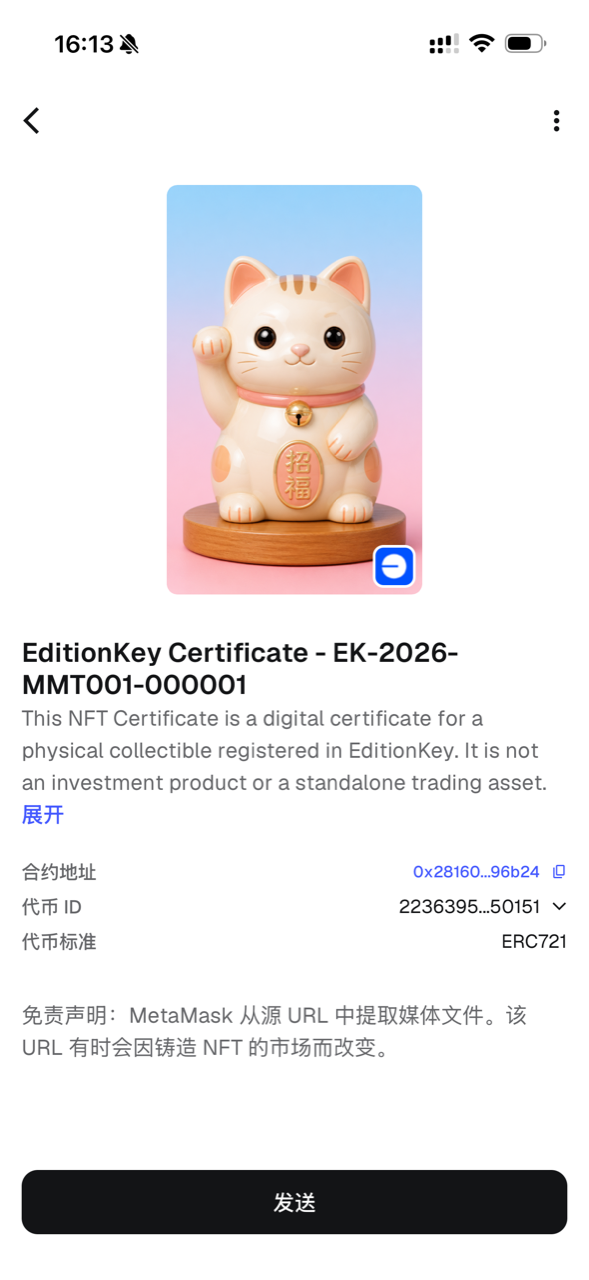
- In EditionKey My Cards, open the Claimed card and use Copy beside Contract Address and Token ID. Paste the complete contract address into Address and the complete Token ID into ID, then tap Import.
- The certificate should appear in the NFT section. Open it to compare the image, Card ID, contract address and Token ID with EditionKey.
- Receiving or manually importing the initial certificate does not require an outgoing MetaMask transaction or gas from this wallet. Base ETH is needed only if you later send the certificate from MetaMask.
Important warning
Use the public account address only. EditionKey never needs the Secret Recovery Phrase, private key, wallet password or an approval transaction.